LookBooks
Available with LookBook license
LookBooks allow you to group products for cross-selling, up-selling, and inspiring your consumers. While you are able to create new LookBooks in the admin, you can add, remove, and reorder products within the LookBook.
- Log into the admin
- Select Products in the left nav, and then select LookBooks
Editing a LookBook
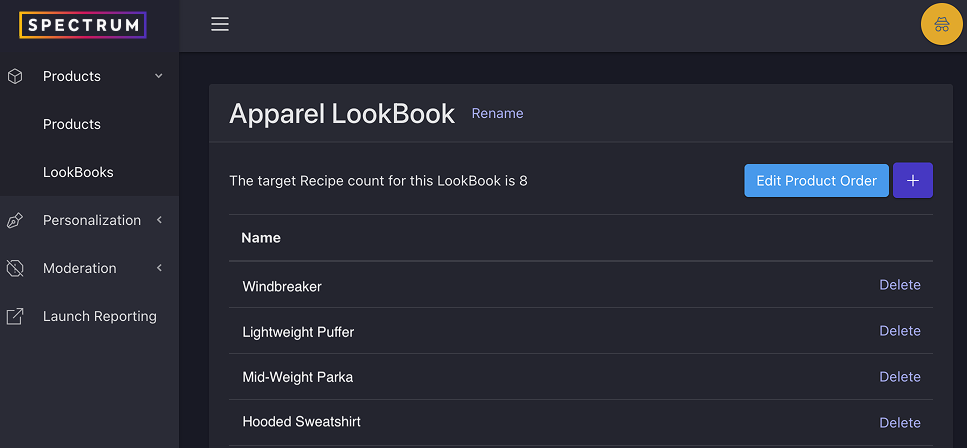
You may rename your LookBook (this is an internal name only) or delete products from the edit view.
Adding Products to a LookBook
- From the LookBook list view, click the pencil icon next to the LookBook to which you’d like to add products
- Click the + button in the top right
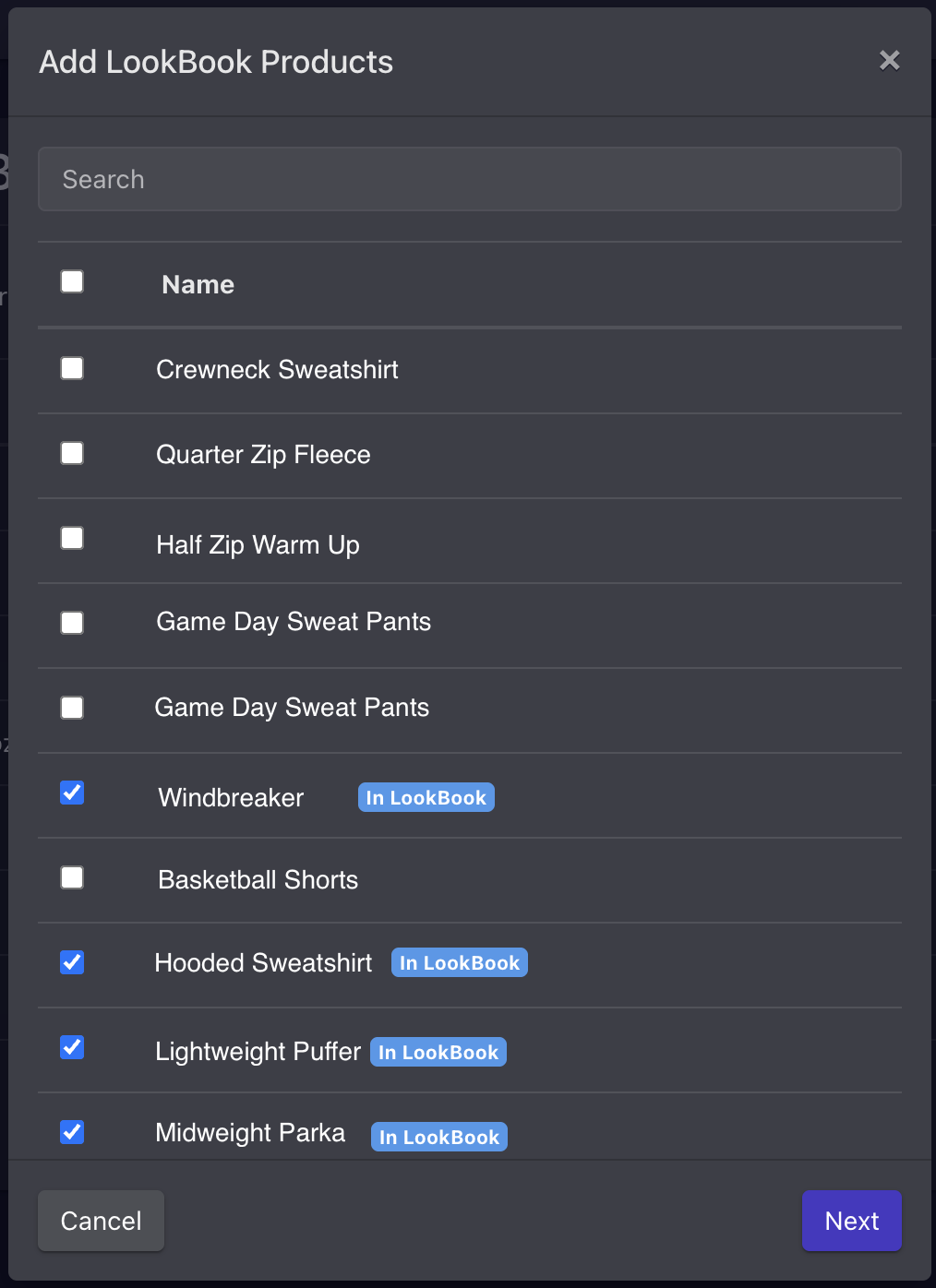
- Select the product(s) you would like to add. You may do this by scrolling or searching products.
- Click Next button
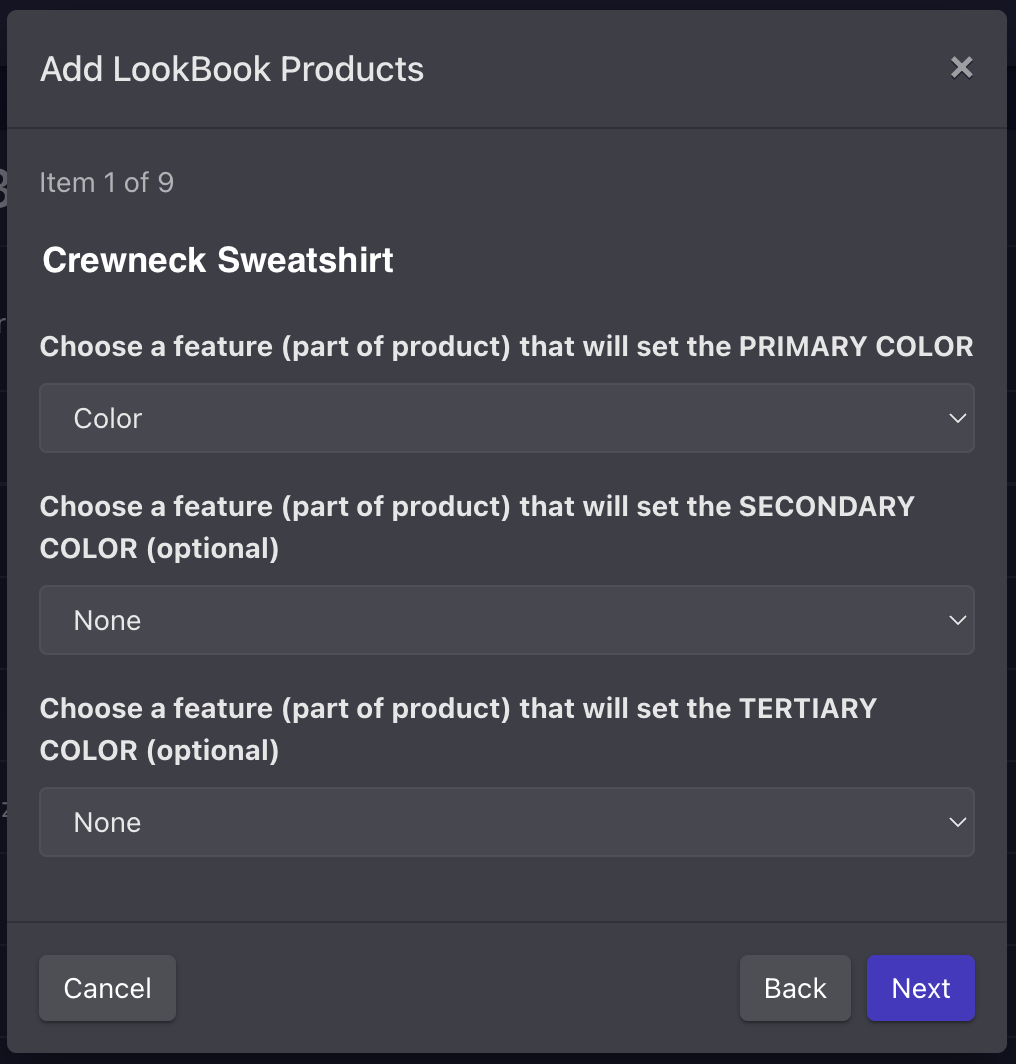
- You will be prompted to choose which part of the product(s) should drive the color matching.
- Once you’ve made those selections, click Done.
While you are not limited in the number of products you can add to a LookBook, your customizer will limit the number of products shown within the LookBook. We suggest adding a few more than your customizer limit in case there are products that are unavailable or not well matched to the consumer’s customization choices.
Reordering Products in a LookBook
- From the LookBook list view, click the pencil icon next to the LookBook to which you’d like to add products
- Click the Edit Product Order button
- Drag products into the desired order
- Save changes