Text
Available with Core license
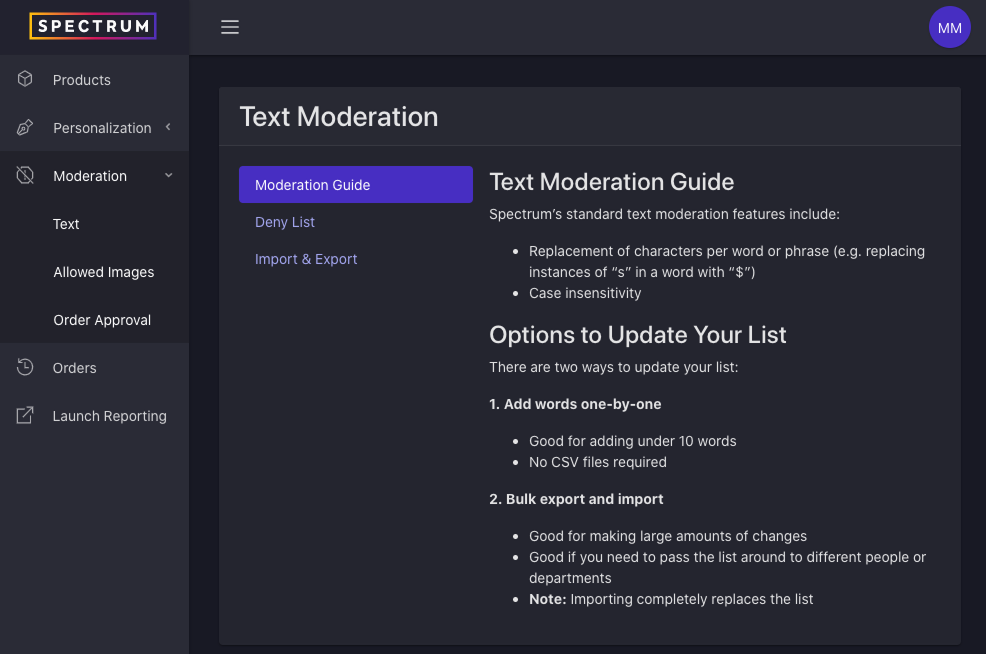
Standard text moderation is available to all Spectrum clients and consists of a word/phrase look up that is used to determine whether or not user-inputted text is allowed on a product.
- Log into admin
- Navigate to Moderation > Text
Deny List
The contents of the deny list may contain hurtful or harmful language. As such, you will encounter a content warning before your list is displayed. You may check the “Don’t show me this again” if you wish to bypass it in the future.
Add to Deny List
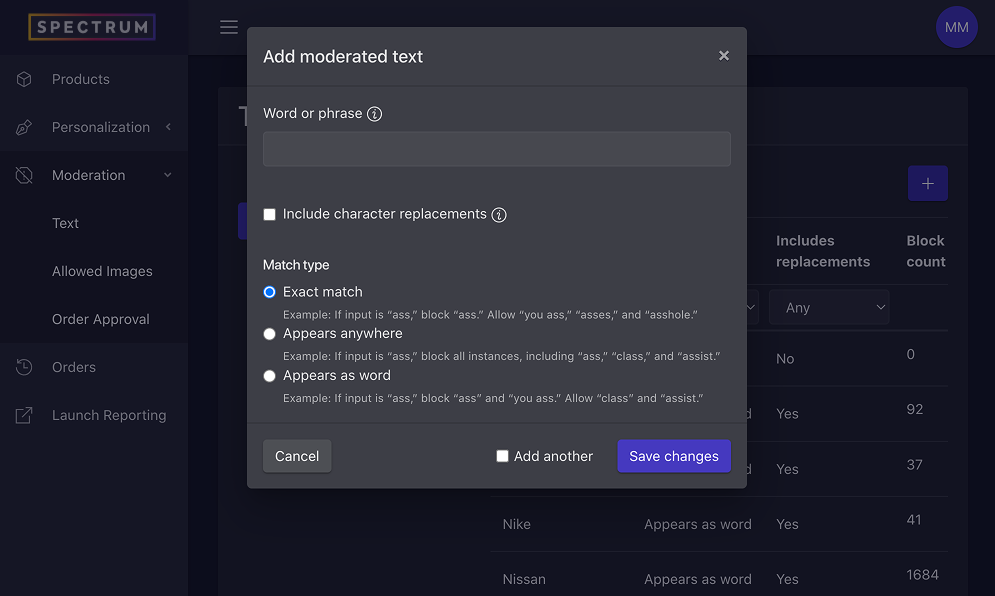
- From the Text Moderation list view, click the + icon in the top right corner of the page
- Enter word or phrase (not case sensitive)
- Indicate whether or not you want to include character replacements for the word/phrase (e.g., replacing “s” with “$” or “a” with “@”).
- Choose a match type
- Exact match will block the word or phrase exactly as entered (e.g., an exact match of “ass” will allow “you ass” and “asses”)
- Appears anywhere will block any reference to the word on its own or as part of another word (e.g., an appears anywhere match of “ass” will block “ass,” “class,” and “assist”)
- Appears as word will block the word within any phrase or sentence (e.g., an appears as word match of “ass” will also block “you ass” and “ass forever” but will allow “class” and “assist”)
- Save changes
- If you have multiple words/phrases to add, you may check the “Add another” box to reload the add moderated text modal automatically after saving
Edit / Delete from list
- From the Text Moderation list view, click the edit (pencil) icon next to the word/phrase you wish to edit
- To edit, make updates within the edit moderated text modal and save
- To delete, click the Delete button
Import & Export list
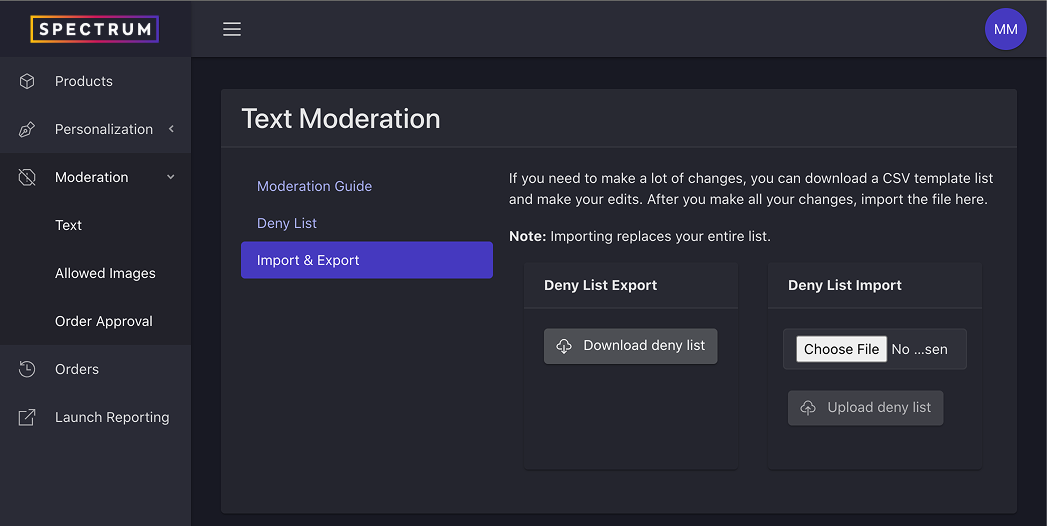
- To export your list, click the Download deny list button
- This will download a CSV file that includes word, match type, whether or not the word includes character replacement enabled, and the number of times the word has been blocked
- To import your list, click the Upload deny list button
- Formatting of the imported list is important, so we recommend downloading your list, editing, and then uploading
- A list import replaces your entire list. There is no compare feature that detects additions or deletions.
A list import replaces your entire list. There is no compare feature that detects additions or deletions.